> ## Documentation Index
> Fetch the complete documentation index at: https://docs.trybloom.ai/llms.txt
> Use this file to discover all available pages before exploring further.
# Create a launch deck in Paper
> Use an MCP-connected agent, Bloom's Brand Skill, and Paper to make and export a short branded presentation.
This example starts with Teenage Engineering's existing field system™ and ends with a six-slide concept deck.
Bloom held the brand and supplied its active Brand Skill. An MCP-connected agent applied that guidance in Paper, where the deck remained editable.
## The finished deck
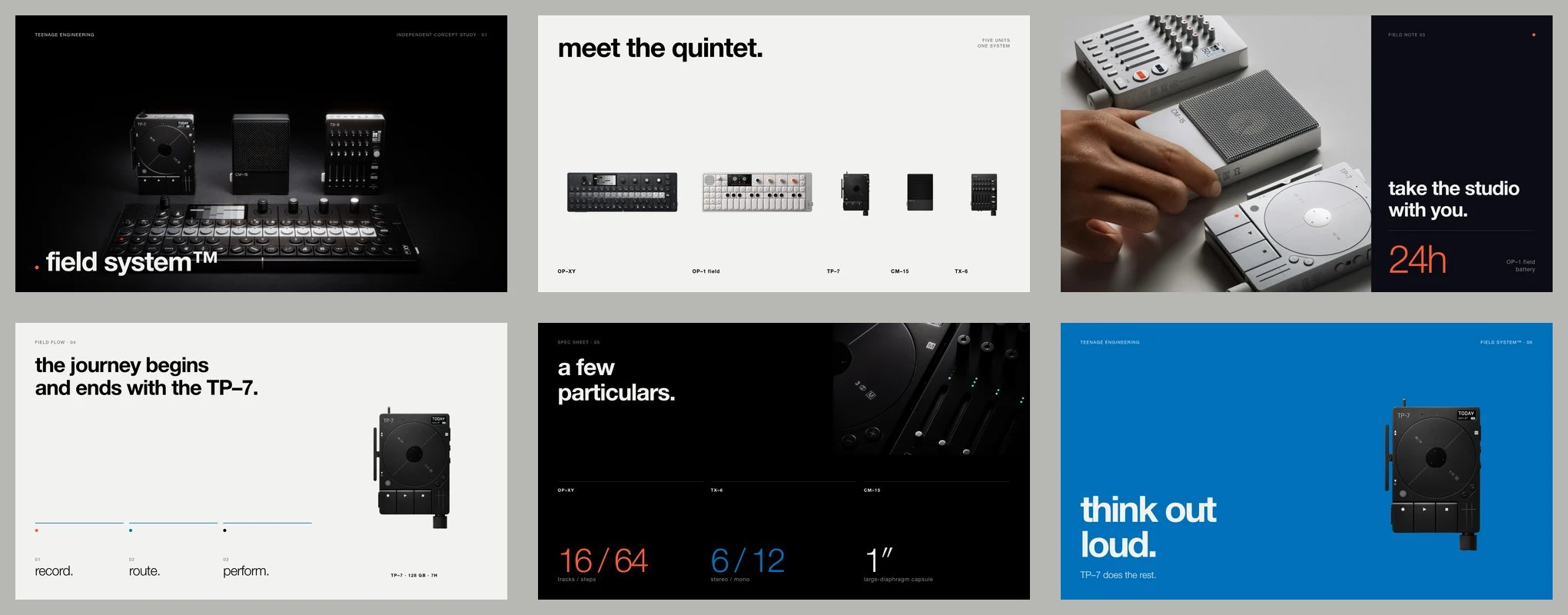 The complete six-page PDF.
## Run it with your agent
Connect Bloom and Paper to the same MCP-compatible agent. Keep Paper Desktop open with the target file loaded, and follow Paper's current setup guide below.
Give your agent access to the brand and its active Brand Skill.
Follow Paper's current MCP setup instructions.
Give your agent this prompt:
```text theme={null}
Create a five- or six-slide launch deck in Paper for [brand website] about
[product or announcement], for [audience]. Use 1600 × 900 slides.
Reuse a matching ready brand in Bloom, or create one and wait until ready.
Apply its active Brand Skill and inspect usable Brand Library assets. Use only
user-supplied or permitted official assets. State any asset or font substitution.
Review every slide, fix visible issues, and export individual PNGs and one PDF.
Do not publish anything externally.
```
For server-side applications, you can [retrieve the active Brand Skill through the REST API](/guides/use-brand-skill) and pass it to a Paper-connected agent. This example used MCP; the REST path was not tested in this run.
## How it worked
The complete six-page PDF.
## Run it with your agent
Connect Bloom and Paper to the same MCP-compatible agent. Keep Paper Desktop open with the target file loaded, and follow Paper's current setup guide below.
Give your agent access to the brand and its active Brand Skill.
Follow Paper's current MCP setup instructions.
Give your agent this prompt:
```text theme={null}
Create a five- or six-slide launch deck in Paper for [brand website] about
[product or announcement], for [audience]. Use 1600 × 900 slides.
Reuse a matching ready brand in Bloom, or create one and wait until ready.
Apply its active Brand Skill and inspect usable Brand Library assets. Use only
user-supplied or permitted official assets. State any asset or font substitution.
Review every slide, fix visible issues, and export individual PNGs and one PDF.
Do not publish anything externally.
```
For server-side applications, you can [retrieve the active Brand Skill through the REST API](/guides/use-brand-skill) and pass it to a Paper-connected agent. This example used MCP; the REST path was not tested in this run.
## How it worked
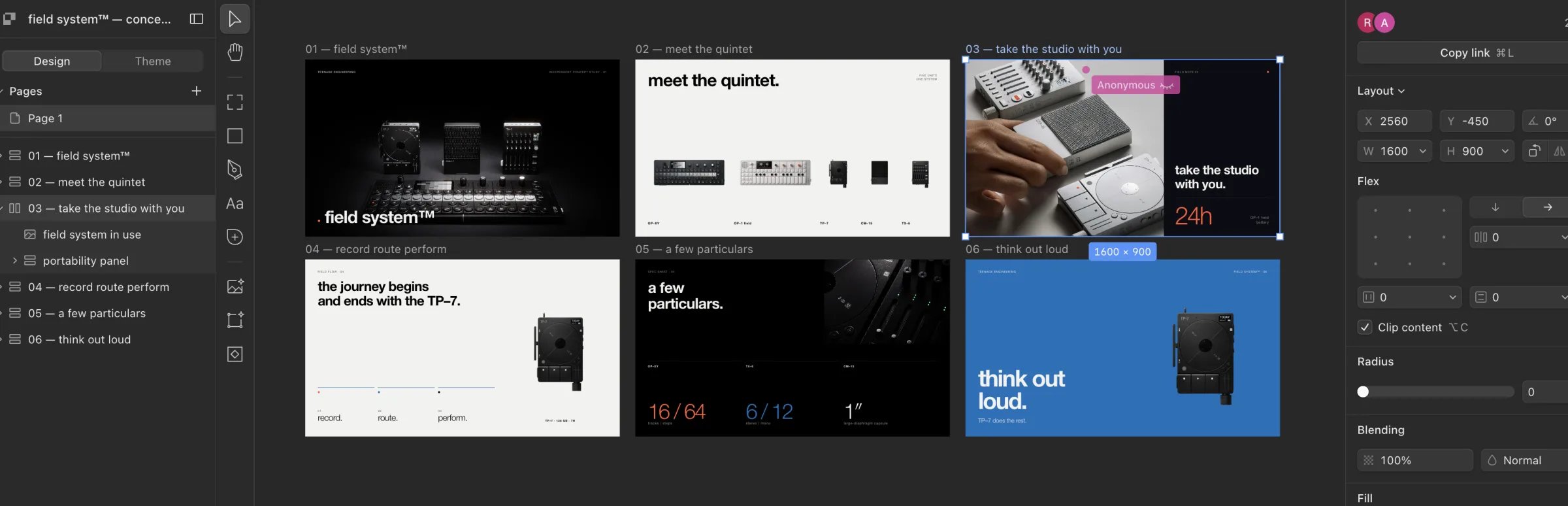 The agent used Bloom MCP to create a brand from [the official field system page](https://teenage.engineering/products/field-system), waited until it was ready, and inspected the complete active Brand Skill for identity, palette, voice, and product guidance.
The Brand Library contained only the verified logo. The agent used photography from Teenage Engineering's official press and product sources, visually inspected every asset, and set the six-slide story.
The agent created six 1600 × 900 artboards in one Paper file, using the Brand Skill to guide the layout and copy.
The agent reviewed each slide through Paper screenshots for spacing, typography, contrast, alignment, and clipping. It then exported six individual PNGs and one six-page PDF.
This independent example uses Teenage Engineering's existing field system™ and public official product and press material. It is not an official Teenage Engineering presentation.
The agent used Bloom MCP to create a brand from [the official field system page](https://teenage.engineering/products/field-system), waited until it was ready, and inspected the complete active Brand Skill for identity, palette, voice, and product guidance.
The Brand Library contained only the verified logo. The agent used photography from Teenage Engineering's official press and product sources, visually inspected every asset, and set the six-slide story.
The agent created six 1600 × 900 artboards in one Paper file, using the Brand Skill to guide the layout and copy.
The agent reviewed each slide through Paper screenshots for spacing, typography, contrast, alignment, and clipping. It then exported six individual PNGs and one six-page PDF.
This independent example uses Teenage Engineering's existing field system™ and public official product and press material. It is not an official Teenage Engineering presentation.